
User Roles and Permissions Guide
User Roles and Permissions Guide
Introduction
Every GreenFeet user has one of three Role Based Access Controls or roles: System Admin, Super User or Viewer. The role decides which menus, pages and buttons a person sees, and what changes they can make.
Roles let you give your whole team access to sustainability data while keeping Company and Users settings in a few trusted hands. Controls that are not available to a role are hidden. The internal review and outstanding verification actions at the end of this guide identify items requiring further testing.
The three roles at a glance
System Admins run the account, Super Users manage the data, and Viewers read it.
• System Admin: full control of the account, including company settings, users and roles.
• Super User: add, edit, delete and import data, and use permitted configuration tools. Cannot access Company or Users settings.
• Viewer: read-only access to your data, with export.
Important: your company must always have at least one System Admin. GreenFeet will not let you demote or delete the last one, so promote another user to System Admin first.
Managing users and roles
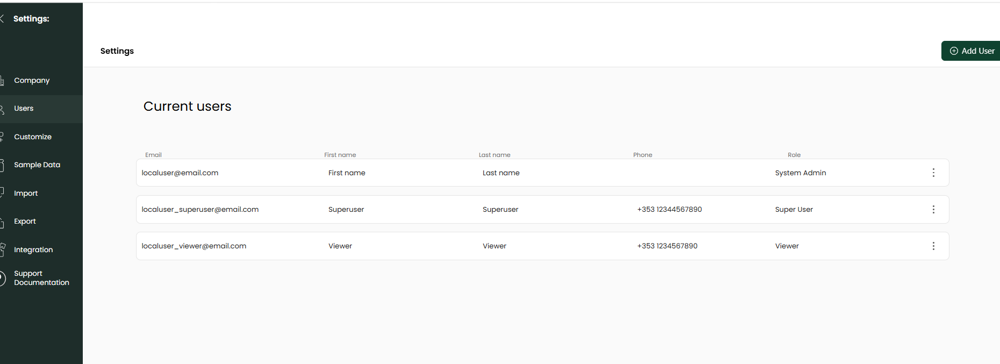
Only System Admins can manage users, from Settings → Users. The Role column shows each person's current role.
Settings → Users. Use Add User (top right) to invite someone. The Role column shows each person's role, and the ⋮ menu on each row lets you edit or remove that user.
Add a user
- Go to Settings → Users and select Add User.
- Enter their details.
- Pick a role. If you leave the role picker unchanged, the user is created as a Viewer.
- Save.
Change a user's role - Go to Settings → Users and edit the user.
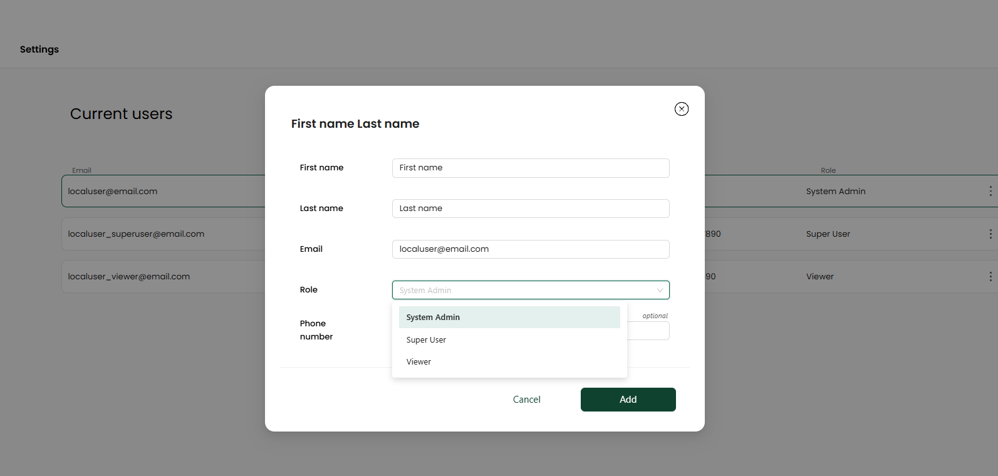
- Choose the new role and save. The form closes once the change is saved.
- Ask the user to refresh their browser or log in again. Their menus and buttons then match the new role.
Selecting a user role
In the user form, open the Role dropdown and choose System Admin, Super User or Viewer. Review the selected role before submitting. This example shows System Admin selected; it does not demonstrate the default role for a new user.
The last System Admin rule
GreenFeet will not let you demote or delete your company's only System Admin. You will see the message "A company must have at least one System Admin." Promote another user to System Admin first, then make the change.
What users see when they lack access
Most of the time, users never meet a locked door: buttons and menu items they cannot use are hidden, not greyed out.
• Role changed while signed in. If an admin changes someone's role while they are working, a button they could see a moment ago may stop working. They will see a single Permission denied notice. Refreshing the page brings their screen up to date.
• Viewer screens. Viewers see read-only versions of pages. For example, My Page shows "Not set up yet" if no public page exists, and unpublished reports show "Not published".
• Other companies' data. Links to another company's records always show as not found. GreenFeet never reveals whether such a record exists.
Updated 1 day ago